EEmmaExample conversation
You want to keep talking. Where do you start?
A message worth replying to.
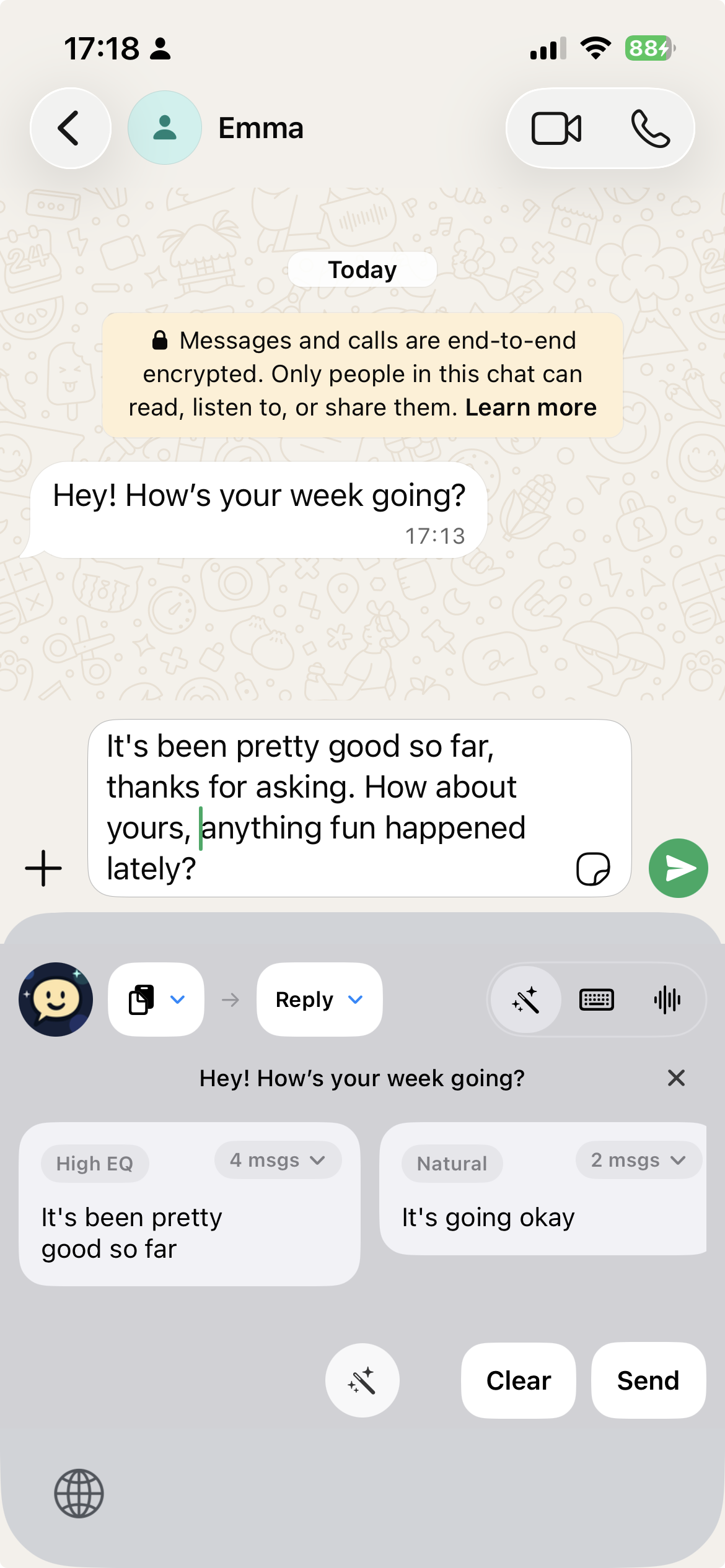
The words come easier.
Right inside your chat.Find a natural way to reply, even when you’re still getting to know each other.
From understanding the conversation to finding your own words, get help at every step.
Use the conversation you provide to get suggestions that fit the moment.
Explore different reply styles for a tone that feels right.
Start with a suggestion, then edit it to sound like you.
Bring your reply into the input field without moving to another app.
A keyboard for the moment. App tools for looking at the bigger conversation.
A real conversation, suggestions, and your reply in one place.
Add a current chat analysis screenshot: selected conversation and its analysis result.
Explore the context of a conversation you choose to analyze.
Add a current conversation insights screenshot: chat rhythm, top words, and overview.
Look back at conversation patterns and frequently used words.
Keyboard screenshot shown in English. The two app previews are labeled placeholders.
 WhatsApp
 Instagram
 LINE
LINE WeChat
No manual screenshots.
No copying chats into another app.
Insert, edit, and send from your keyboard.
With screen recognition enabled, use ReplySense in chat apps that support third-party keyboards.
You decide what gets sent.Know what happens when you ask AI for help.
Read the full privacy policy ↗Suggestions are editable. You choose which words to send.
AI tasks send the relevant content to our server and AI providers for processing.
Control optional permissions and contact support for data access or deletion requests.
Getting started, compatibility, and staying in control.
ReplySense is an AI reply keyboard for iOS, with companion app tools for reply suggestions and conversation analysis.
Install the app and follow its setup guide to add the keyboard. Enable Full Access for online AI features, then switch to ReplySense in a supported chat app. Screen recognition has a separate setup and permission flow.
You can use it in apps that support third-party iOS keyboards, including many common chat apps. Some apps and secure input fields restrict custom keyboards.
With screen recognition set up and enabled, you can request replies from the conversation on screen without manually taking a screenshot or copying the chat. Other input sources remain available.
Yes. Use the actual conversation and choose a suitable style to find a natural way to respond. You can edit every suggestion before sending.
The app is available to download from the App Store and includes in-app purchases. Available allowances, paid features, and subscription terms are shown in the app before purchase.
No. AI features send relevant content to our server and AI service providers. See the privacy policy for processing, storage, permissions, and deletion details.

Find your next reply with ReplySense.

Scan with your iPhone